Quickstart
This guide walks through a complete end-to-end example using a ChatGPT conversation export (conversations.json).
1. Prepare your data
Format your raw data into the interaction trace format. For more details on how to format your interaction traces, see Data Format.
#  Example Input
[
    {
        "interactions": [
            {
                "interaction": "User: Tell me a joke",
                "metadata": {"time": "2026-04-21 10:00:00"}
            },
            {
                "interaction": "ChatGPT: Why did the chicken cross the road",
                "metadata": {"time": "2026-04-21 10:00:30"}
            },
            {
                "interaction": "User: idk. why?",
                "metadata": {"time": "2026-04-21 10:01:00"}
            },
        ],
        "time": "2026-04-21 10:00:00" # Optional
    },
    {
        "interactions": [
            {
                "interaction": "User: What is the best restaurant in Palo Alto",
                "metadata": {"time": "2026-04-21 11:35:00"}
            },
            {
                "interaction": "ChatGPT: O2 Valley",
                "metadata": {"time": "2026-04-22 11:35:02"}
            }
        ],
        "time": "2026-04-21 11:35:00" # Optional
    },
    ...
]
2. Create the Lattice
Behavior Lattice currently supports LLMs via the OpenAI API and Anthropic API under the hood for its core operators. You will need to set the OPENAI_API_KEY or ANTHROPIC_API_KEY depending on the model provider you set in a .env file or by localling setting the variables.
import os
os.environ["OPENAI_API_KEY"] = "sk-YOUR-KEY-HERE"
os.environ["ANTHROPIC_API_KEY"] = "sk-ant-YOUR-KEY-HERE"
For best results, we recommend using Anthropic's Sonnet or Opus models. However, you can mix and match models to achieve the most performant results for your use case.
After loading your data, create a new Lattice instance. You will need to specify the user's name (name), a description of the types of interactions being based in (description), and the configurations for the LLMs to use.
import os
from lattice import Lattice, AsyncLLM, SyncLLM
from dotenv import load_dotenv

load_dotenv()

l = Lattice(
    name="User",
    interactions=interaction_traces,
    description="the user's conversation with ChatGPT",
    observer_model=AsyncLLM(name="claude-sonnet-4-6", api_key=os.getenv("ANTHROPIC_API_KEY")),
    insight_model=AsyncLLM(name="claude-opus-4-6", api_key=os.getenv("ANTHROPIC_API_KEY")),
    evidence_model=AsyncLLM(name="claude-sonnet-4-6", api_key=os.getenv("ANTHROPIC_API_KEY")),
    format_model=SyncLLM(name="claude-sonnet-4-6", api_key=os.getenv("ANTHROPIC_API_KEY")),
)
3. Define the Lattice configuration
Before building, provide a config that specifies how nodes are grouped at each layer. Wrap your layers in a Sequential and pass it to the Lattice constructor. For more information on the available layer types, see Building Layers.
from lattice import Sequential, SessionLayer

config = Sequential(
    SessionLayer(n=1),    # L1: one group per session
    SessionLayer(n=10),   # L2: synthesize every 10 sessions
)

l = Lattice(
    ...,
    config=config,
)
If you'd rather not tune the layer structure manually, auto_config() picks a reasonable default:
l = Lattice(...)
l.auto_config()   # sets l.config automatically
4. Build
Start the latticing process by calling build(). It will make observations, then build each layer in order.
# In a Jupyter notebook (async context):
await l.build()

# In a regular Python script:
import asyncio
asyncio.run(l.build())
The build function creates the entire lattice. For more control over the individual layers, refer to our guide on Building Layers.
5. Visualization
Now, you can visualize the results of the lattice using the following functions.
Textual Descriptions
You can inspect each node in the layer (defaults to the top-most layer of the lattice) printed as text output.
# Print current (top-most) layer
l.print_layer()

# Print a specific layer by number
l.print_layer(layer_num=1)
Plotly Figure
You can also view the lattice as an interactive Plotly figure.
fig = l.visualize()
fig.show()
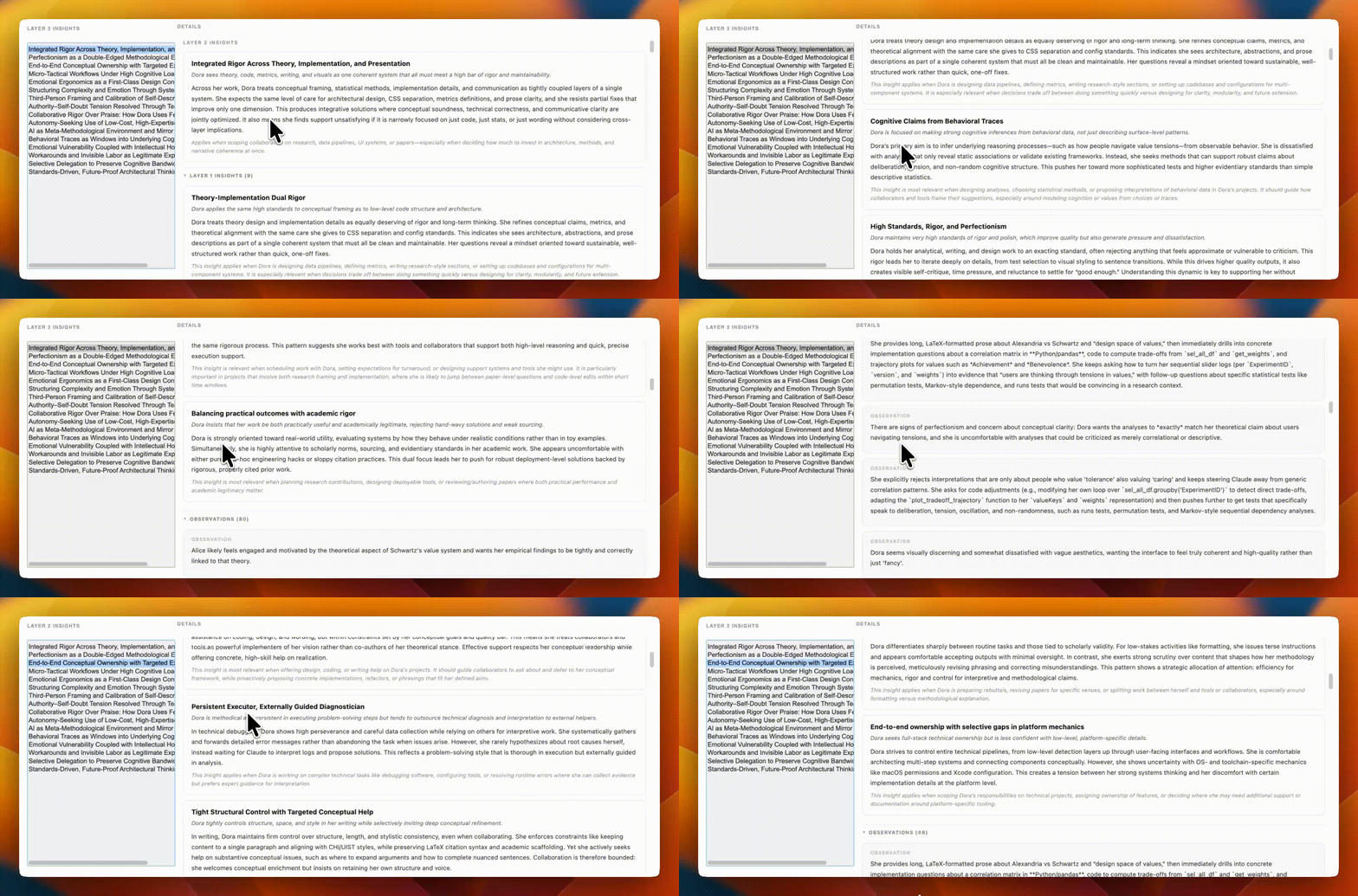
Web Viewer
We also provide a browser-based visualization tool for generated lattices. You will need to save the generated lattice as a JSON file and upload the JSON file to our tool.
# Save lattice
l.save() # By default saves to lattice.json
Python Widget
If using latticing in a Jupyter notebook, you can also visualize layers using an interactive widget:
# Render Python widget
l.visualize_widget()